
Your market, in focus
Charts, sample assets, and a place to start.
 POKZEN / IQ OPTION
Move from market selection to session review in the IQ Option workspace. Explore the flow with virtual funds and sample signals in a local demo that does not connect to an IQ Option account.
Practice at your pace. Your limits stay in view.

Illustrative preview · sample data, not live market data
Charts, sample assets, and a place to start.
Review session limits before you begin.
Follow the signal through to your activity.
Your workflow
Move from your first setup to your next review, with IQ Option at the center of your workspace.
Browse the available assets, save favorites, and review the selected market’s chart.
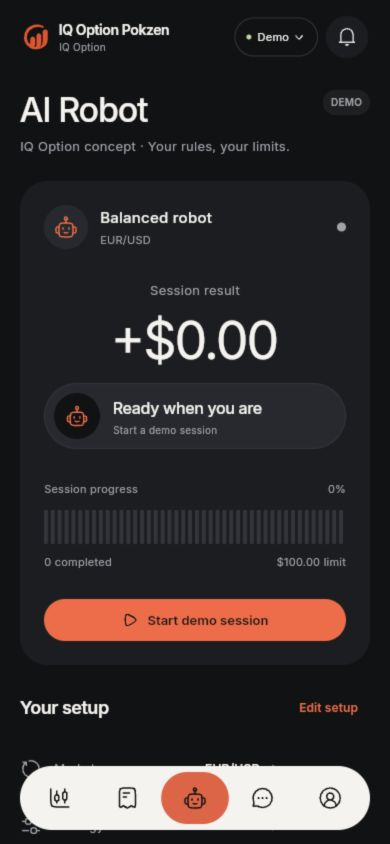
Set the trade amount and duration, then choose a robot preset and your session boundaries.
Start a demo session and watch it move from signal preparation to an open trade and a completed entry.
Inside IQPokzen
A focused app for the way you practice. Explore the screens, then step into your own demo session.
An asset picker, watchlist, and chart keep market selection close to the controls for your next demo trade.
The robot configuration puts your selected market and strategy alongside the trade amount and session limits.
The signal status shows preparation, direction, and monitoring, with the session log recording what happened.
Open the web app or download the Android preview to explore IQPokzen.
Before you explore
Get to know the IQPokzen workspace and what you can do in the demo.
Yes. Open the demo directly, or use Explore demo from the introduction. The optional profile flow lets you preview the account experience.
Open the asset picker in Trading or AI Robot and choose an asset. You can also select a market from the watchlist and mark favorites.
It marks the preparation stage of the preset signal sequence. A sample Up or Down direction follows; the animation does not indicate live market analysis.
The robot checks the session’s completed results against your profit and loss limits. Reaching either limit pauses new entries, and you can pause manually at any time.
No. This is a local demo with virtual funds. It does not connect a broker account, place real trades, collect payment details, or transfer money.
A clearer next step
Start with a setup. Explore at your own pace.